
Start step 1 here
A failed render costs you nothing.
How to make Drake AI video: what you need first
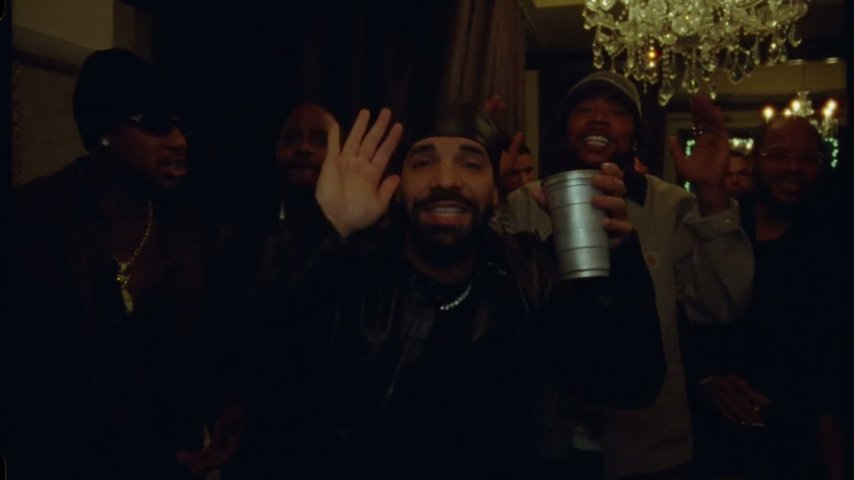
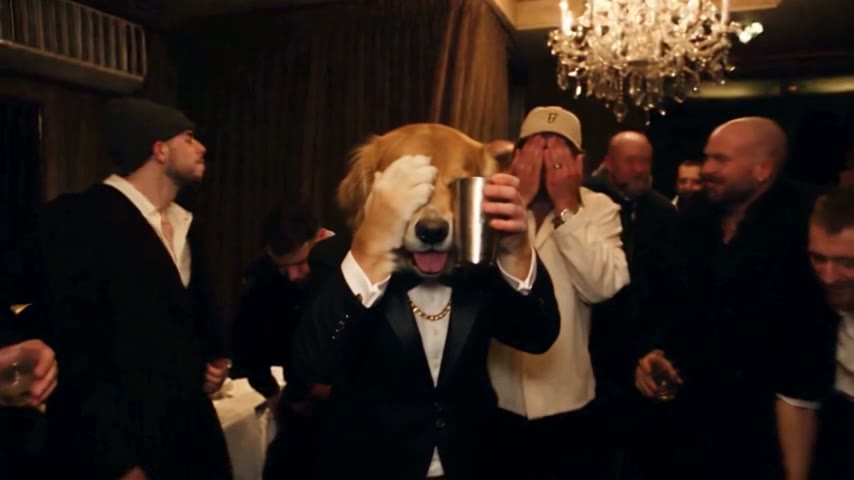
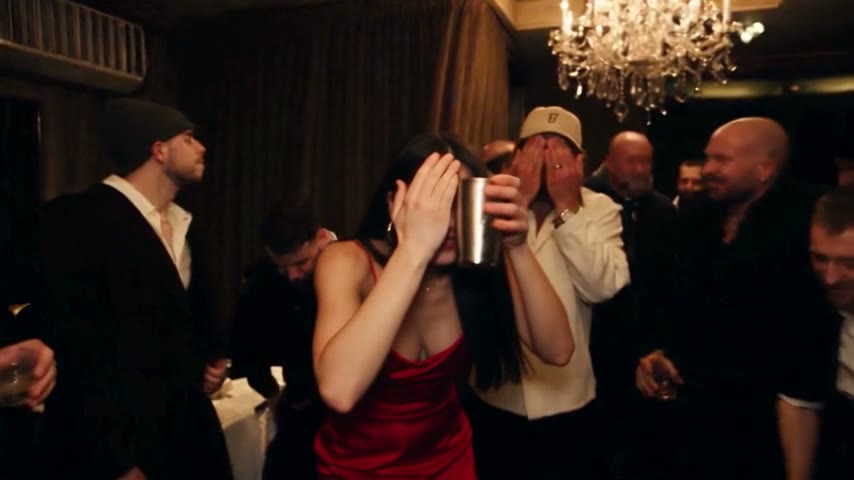
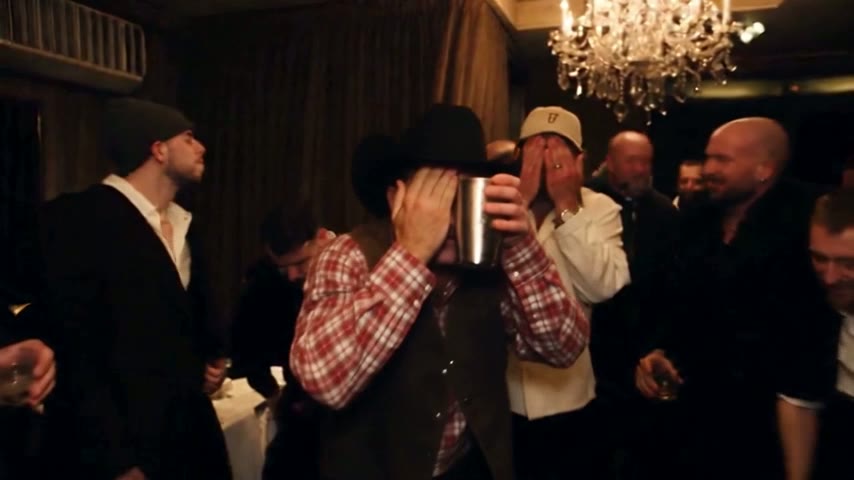
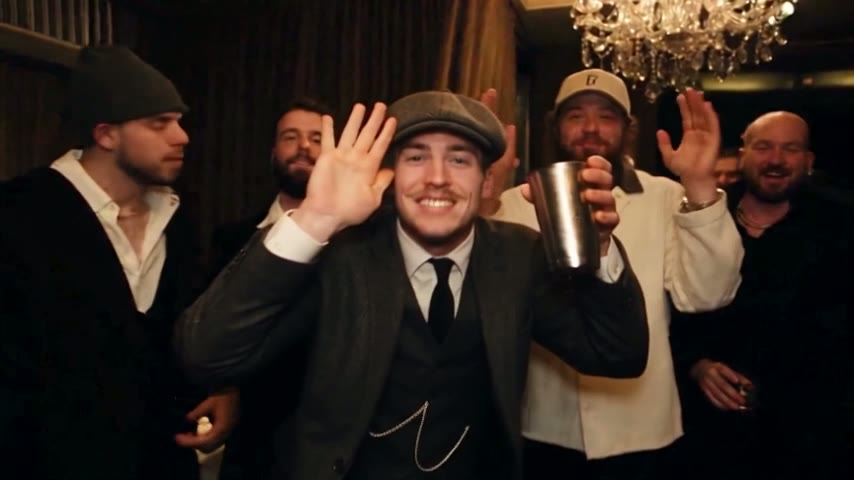
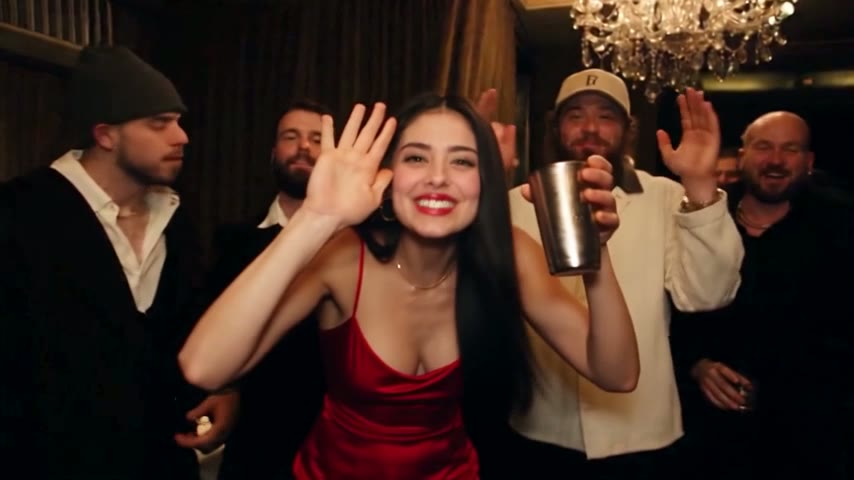
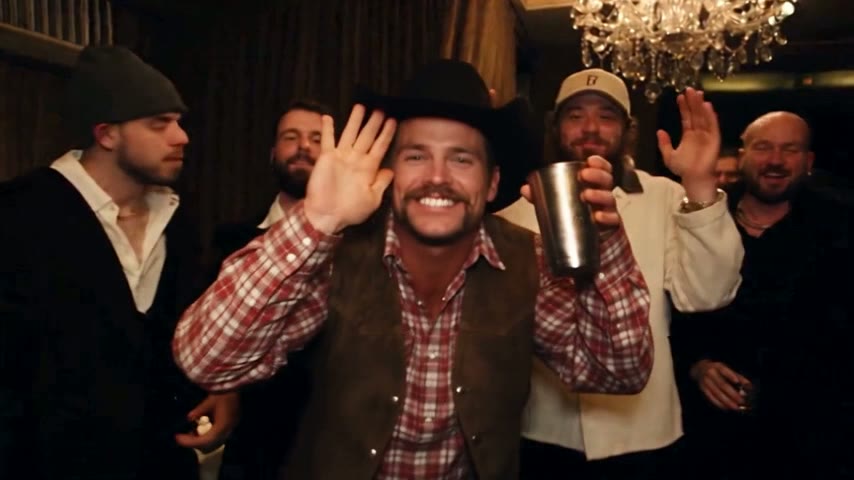
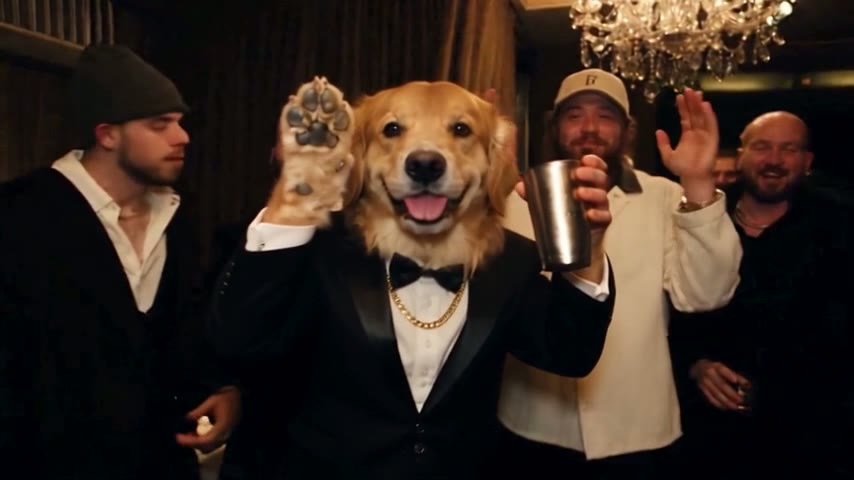
Knowing how to make Drake AI video clips begins with what the tool does to the footage. On the Burning Bridges AI video generator a recreated version of the party scene from Drake's "Burning Bridges" music video is already loaded: the same chandelier-lit dining room, handheld camera moves and choreography, with stand-in guests. Only the lead becomes the person in your photo. The room, the guests with their silver cups and the camera stay exactly as they are, and the moves follow the original.
- One photo of one personA clear, well-lit face, ideally half body with both hands in view. People work best; pets and cartoons may work.
- Permission to use itYour own picture or a friend who said yes. Celebrities and public figures get rejected.
- Any browser will doPhone or desktop, nothing to install.
- No prompt, no editingFootage, song and instruction are set up already. The manual route is explained in how to do Burning Bridges AI.
The tutorial, step by step
Each step comes with the choice that matters most. Not sure this is the clip you saw on TikTok? The Drake AI video page shows which scene it is.
Step 1: upload a photo the AI can use
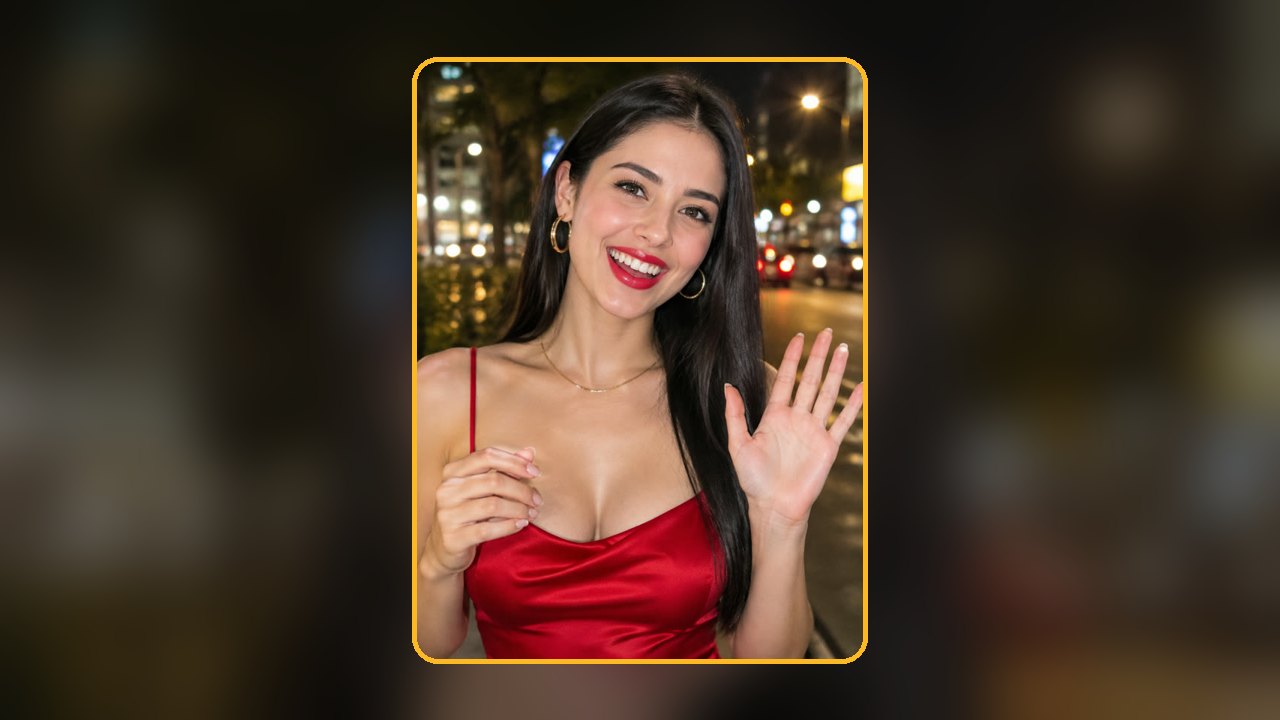
Choose a picture of one person facing the camera in even light, framed from head to waist with both hands showing. The AI copies your hands and wrists from the photo, and this scene is full of pointing and waving. Crop other people out and take sunglasses off: whatever is in the picture carries into the video.
Step 2: set the length and the quality
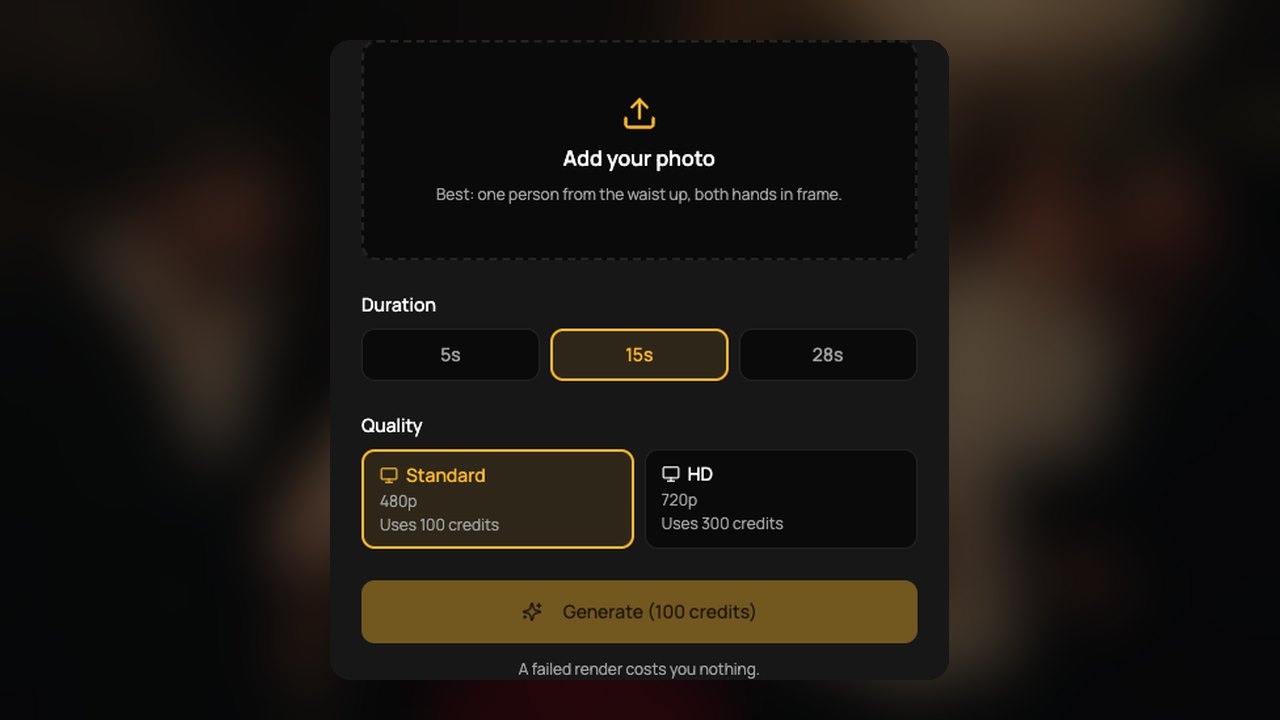
Pick 5, 15 or 28 seconds; each includes the "where she at" moment. Then the quality: Standard (480p) is made for phones, HD (720p) looks sharper on a laptop or TV. The 5-second clip is Standard only. Press Generate.
Step 3: wait, check and download
A 5-second render takes about 3 minutes, 15 or 28 seconds about 5 to 10; the tab does not need to stay open. Watch the result once, checking your face as the camera swings and your hands on the cup. Failed or filtered renders are never charged, and the credits return to your balance.
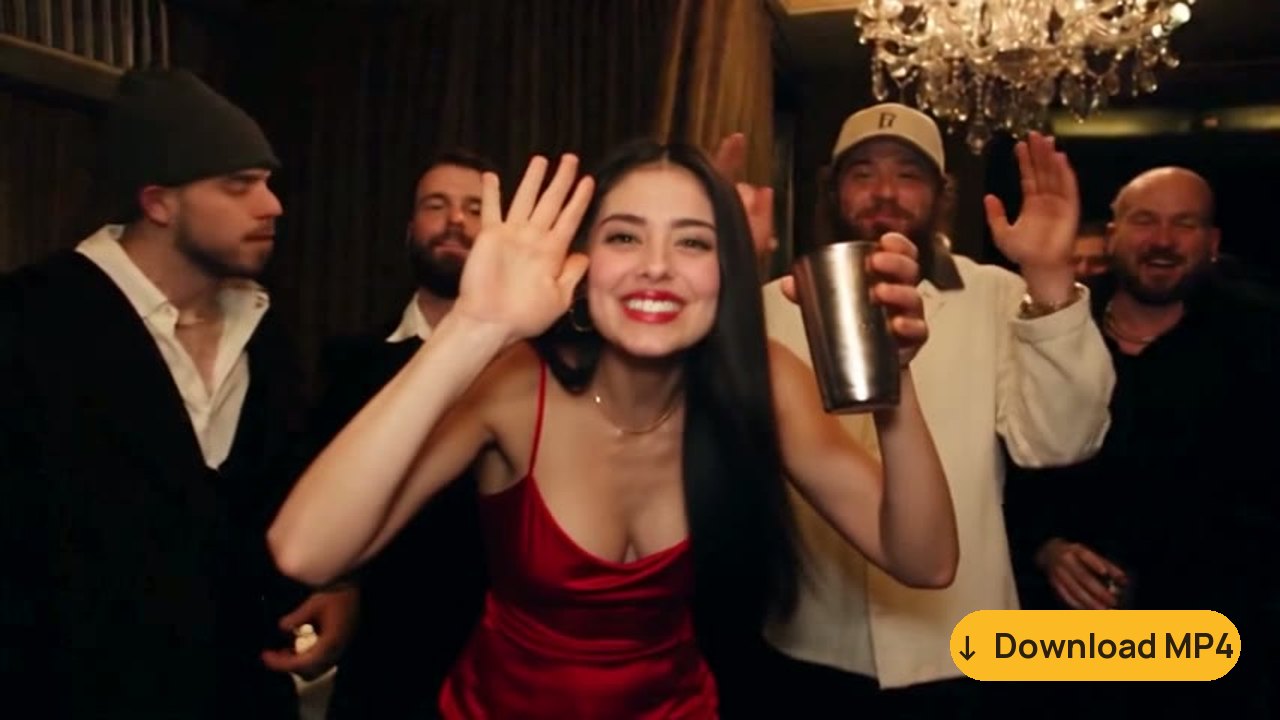
Picking the length and quality
Each length arrives as a widescreen 16:9 MP4 with the original song from that part of the music video. Longer or sharper results use more of your plan; AI Burning Bridges Video pricing lists the plans and credit packs.
5 seconds, Standard
The "where she at" moment and the cup-and-wave finish, for 35 credits.
15 seconds, Standard or HD
The best-known stretch, ending on the wave (2:42 to 2:57 of the music video). One Standard video, or 3 in HD.
28 seconds, Standard or HD
The full party stretch around it (about 2:38 to 3:05). It takes 3 Standard videos, or 6 in HD.
Photo tips
Step 1 up close: choosing the photo
When a likeness misses, the picture is usually why. Check yours against these seven examples.
Use a photo like this

Waist up, hands in view
Your hands and wrists are copied, so the cup and the wave look right when both are visible.
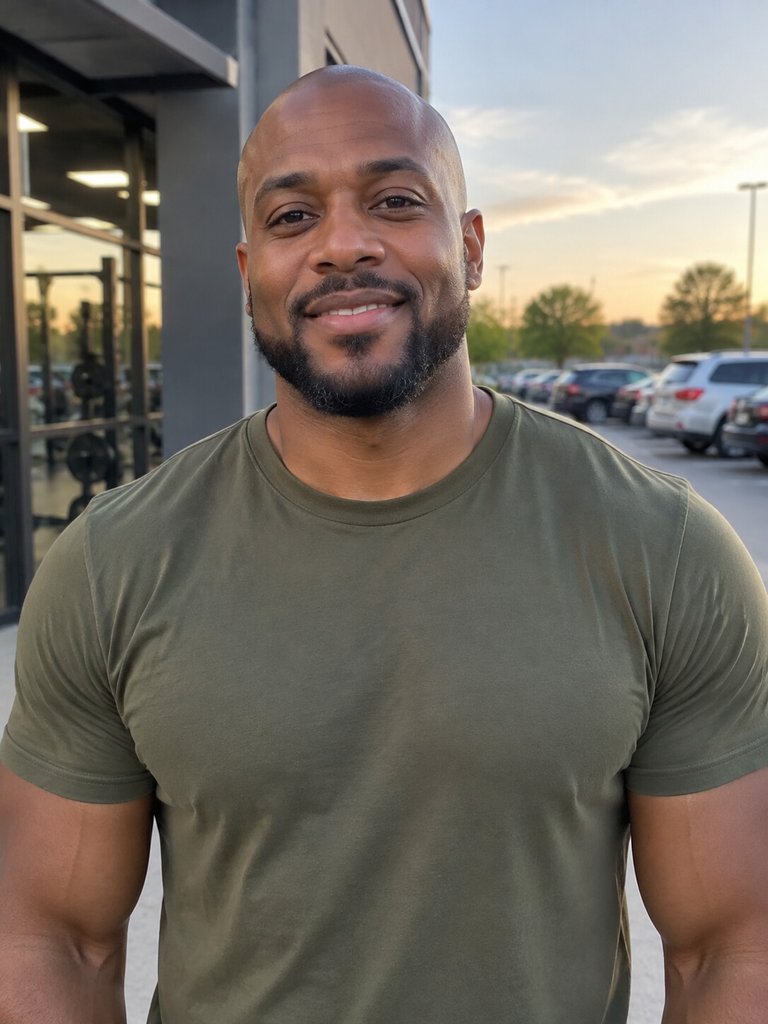
Even light on the face
Front light keeps your features steady as the camera moves.
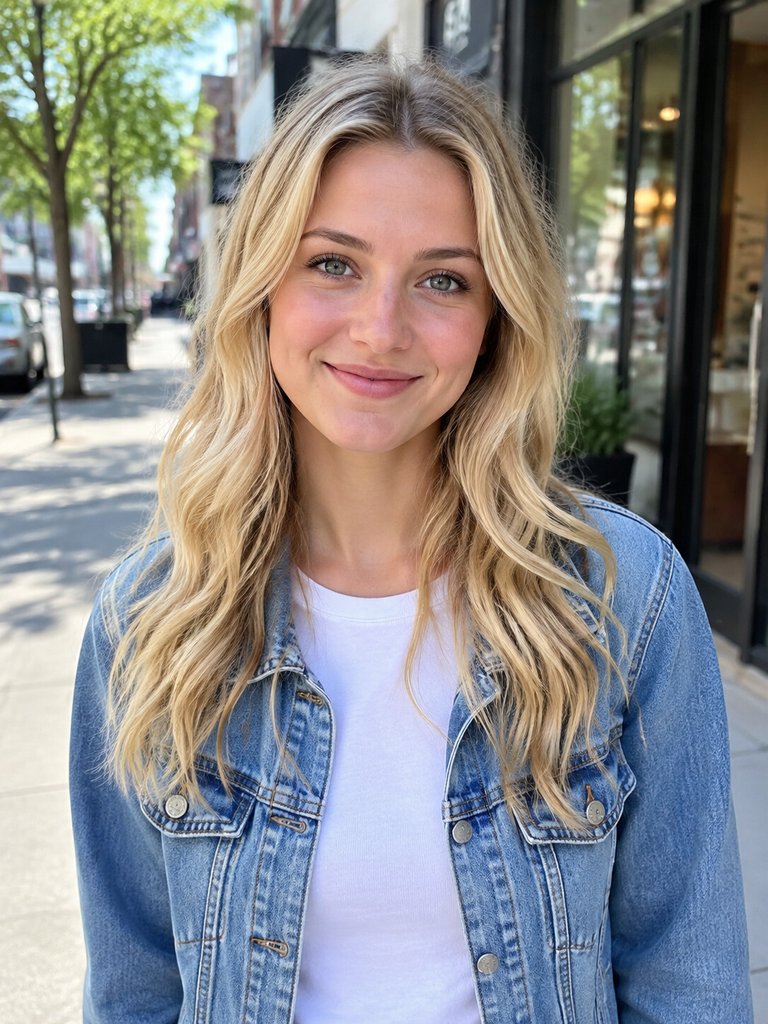
Alone, eyes on the lens
One subject facing the camera leaves no doubt about who takes Drake's place.
Skip photos like these
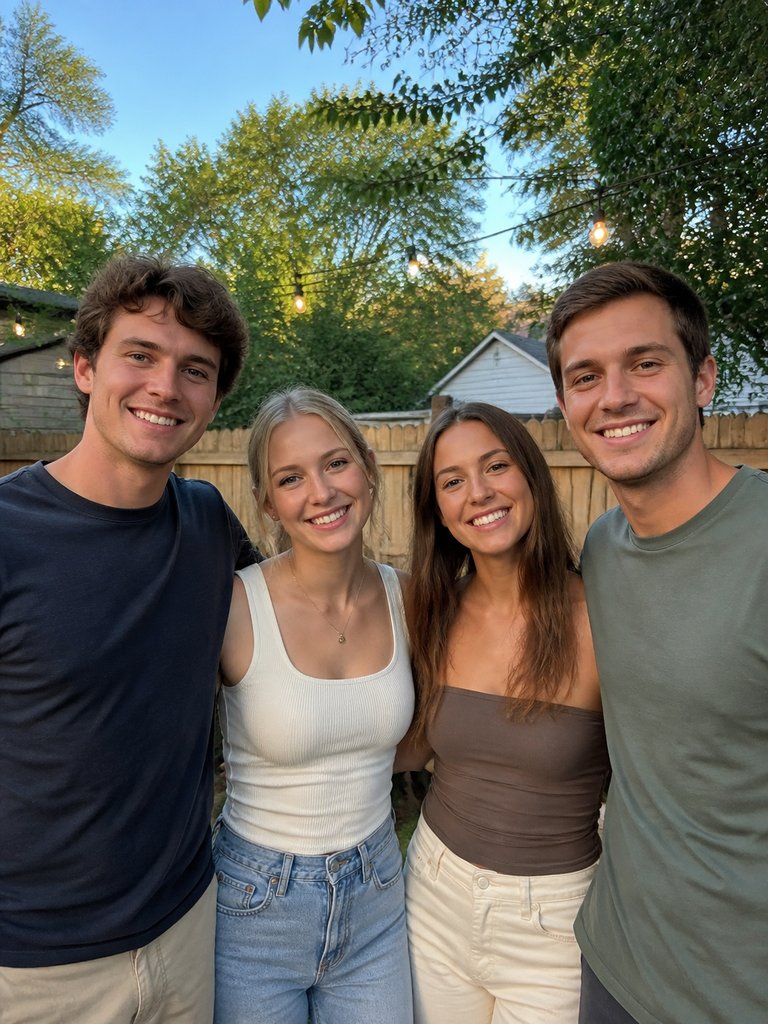
Friends in one frame
With four faces, the AI may cast the wrong friend.
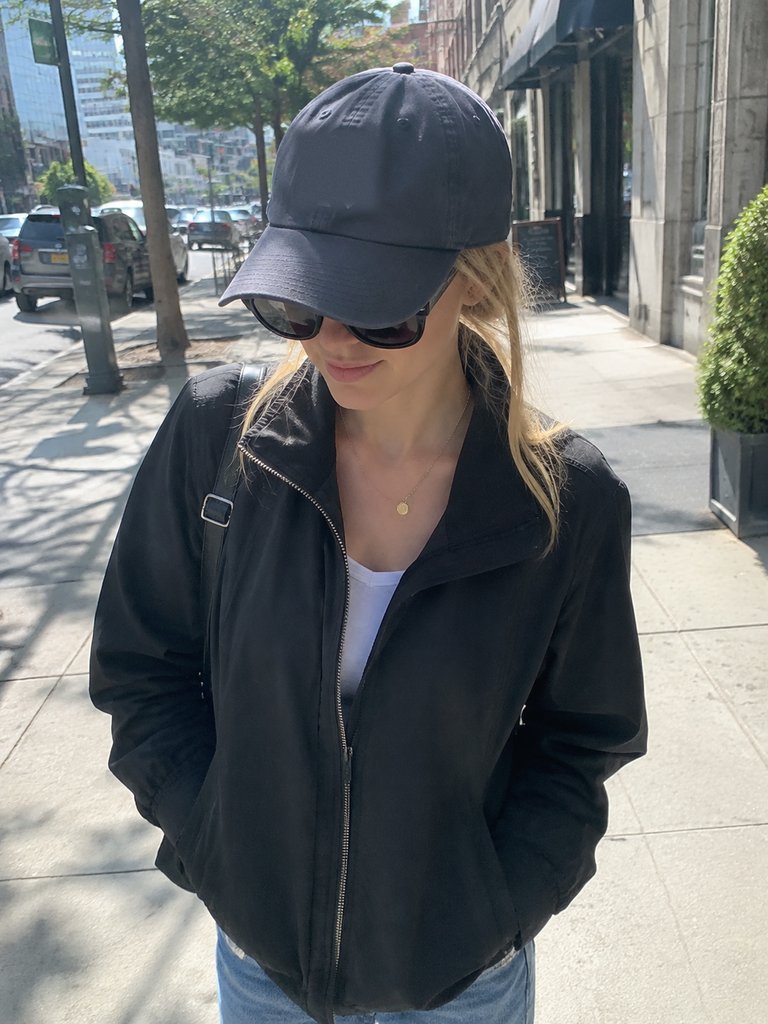
Sunglasses under a cap
Hidden eyes and a shaded forehead make the face waver.
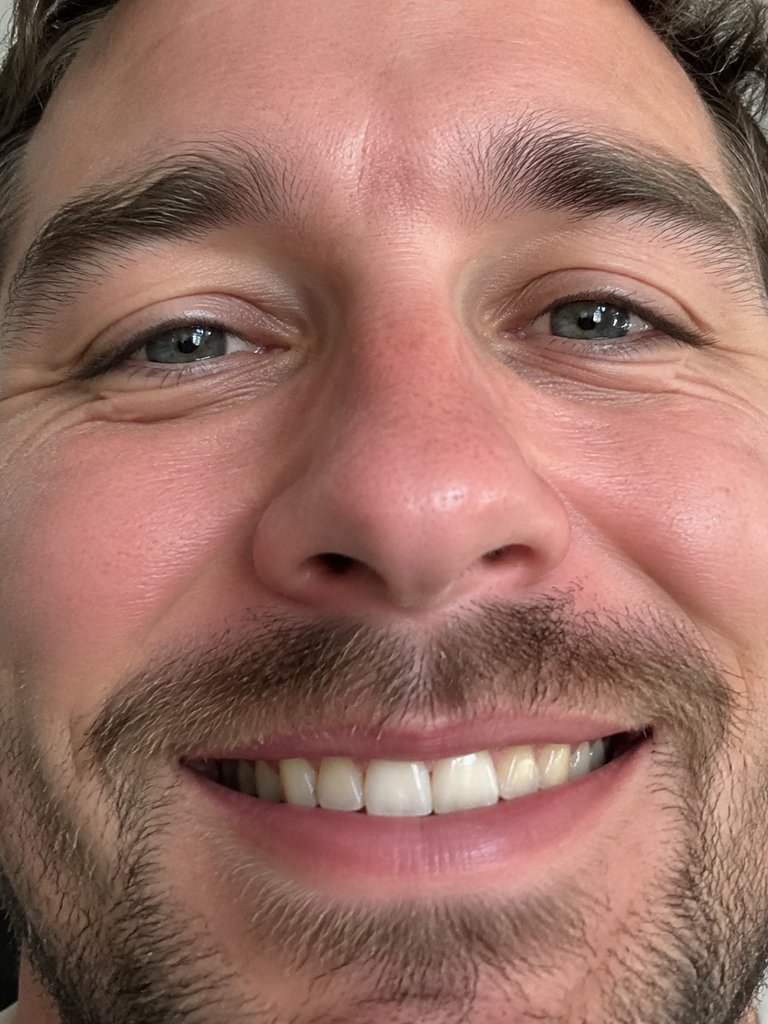
Face filling the frame
With no shoulders or hands, your body and gestures get guessed.
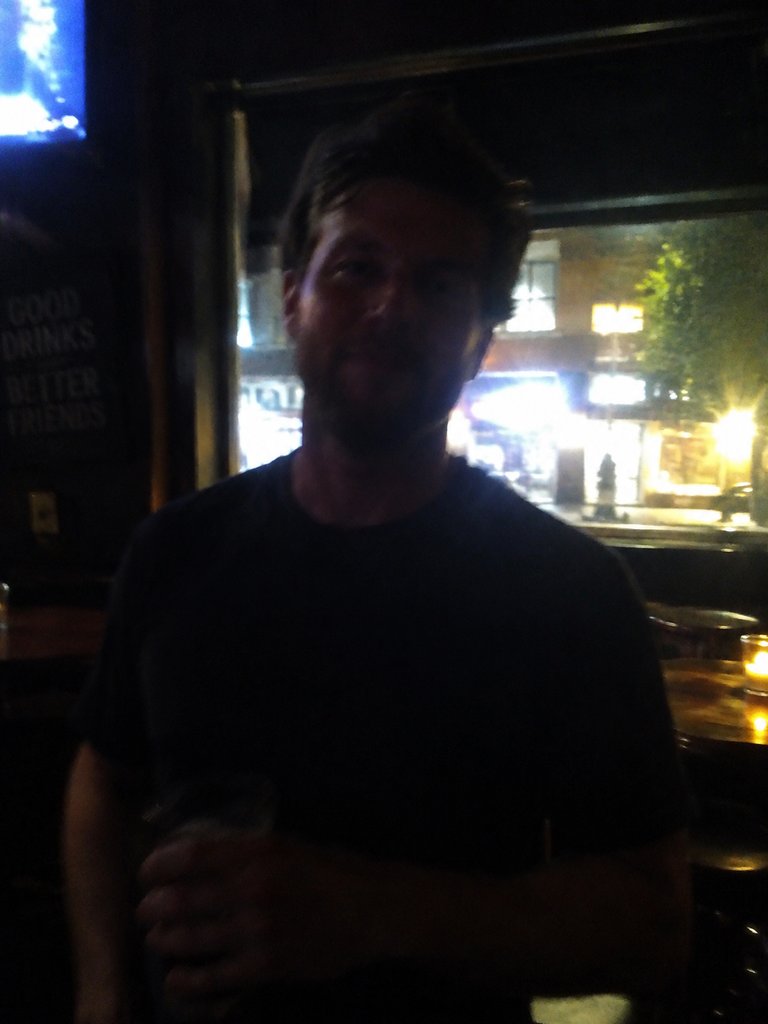
Dim, backlit or blurry
Darkness, a bright window behind you or shake leaves too little detail.
Posting it: the widescreen frame and the sound
You get the music video's own 16:9 frame, so the chandeliers and the crew stay in the shot and nothing needs editing, as with a Burning Bridges AI template.
TikTok
Upload the MP4 as it is. The song is in it and TikTok may recognise it; many people pick the official "Burning Bridges" sound from the library instead. Add the AI-generated label.
Instagram Reels
Same file. Instagram may detect the song too; switch on its label for realistic AI edits.
YouTube and Shorts
Every length fits Shorts, and the 28-second cut also works as a regular upload. Mark it as realistic AI content.
X
Post the MP4 like any video, with your own one-line caption about who took Drake's seat rather than a quote from the song.
Ask before tagging
If the photo shows a friend, ask before tagging them publicly.
Related guides
Common questions before step 1.
How to make Drake AI video: FAQ
How to make Drake AI video on a phone?
Use your phone's browser; there is no app. Sign in, choose a photo from your camera roll, pick the length and quality and tap Generate. A few minutes later the MP4 is ready to save and post to TikTok, Reels, Shorts or X, or to send to a group chat.
How to make Drake AI video for free?
Not on this site: every video is a paid render. The preparation costs nothing, since you can watch the samples and check your photo against the tips first, and a failed or filtered render is never charged. The Burning Bridges AI free page lists what you can look at before paying.
Do I need to write a prompt or edit the clip?
No. The footage, the song and the instruction are in place, so you only give a photo, a length and a quality. You never cut the music video or sync the sound. Tools driven by a written instruction can drift from the original room, crew and moves, which is why their tutorials mention several tries.
Should I pick 5, 15 or 28 seconds?
Go with 15 seconds if unsure: it is the best-known stretch, the camera close on you, ending on the "where she at" wave the trend copies. The 5-second clip keeps only the "where she at" moment itself. Twenty-eight seconds covers the whole party stretch around it and uses three Standard videos.
Why doesn't the face look like me?
Usually the photo is to blame. A shaded or turned face, sunglasses, a cap, hair over the eyes or a crop without shoulders all make the likeness harder to hold as the camera moves. Retake a front-facing, evenly lit picture from head to waist with both hands showing; failed renders are never charged.
Is this the official Drake video?
No. AI Burning Bridges Video is an independent fan-made tool, not affiliated with Drake or his label. The original is the "Burning Bridges" music video from his 2026 album Iceman, posted on Drake's YouTube channel on 15 May 2026. This site makes videos only, not AI voices or song covers.
Now you know how to make Drake AI video
Pick the photo, the cut and the quality; the clip is ready in a few minutes.